Microsoft Authenticator

  • 4.66RATINGS
  • 1M+DOWNLOADS
  • EveryoneAGE
Microsoft Authenticator screenshot
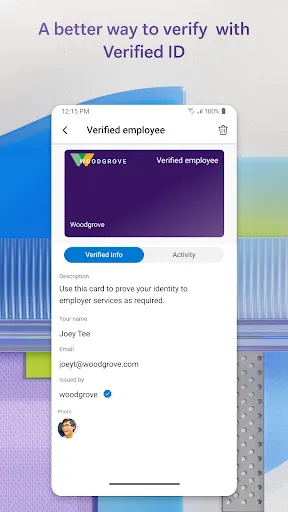
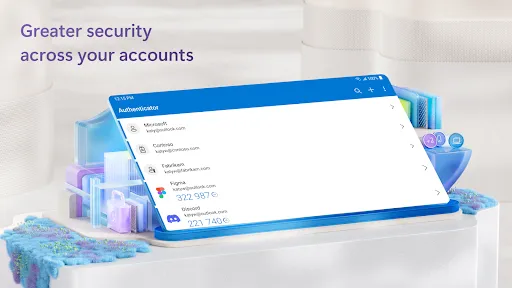
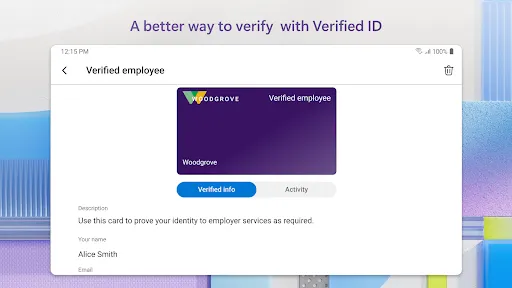
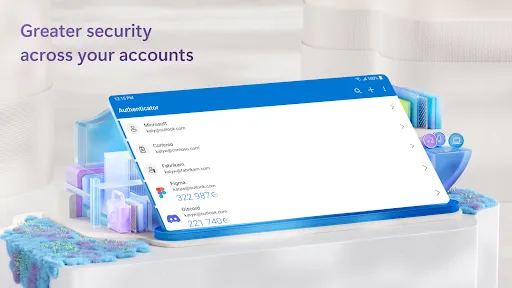
Use Microsoft Authenticator for easy, secure sign-ins for all your online accounts using multi-factor authentication or passwordless. You also have additional account management options for your Microsoft personal, work or school accounts.

Getting started with multi-factor authentication

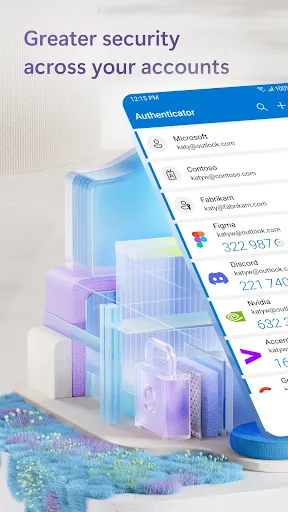
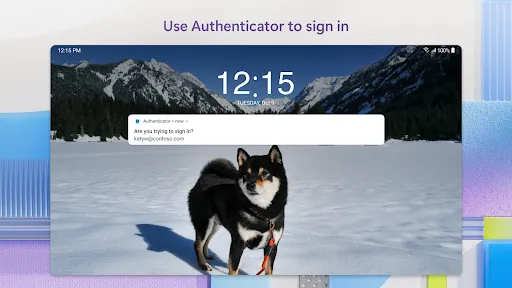
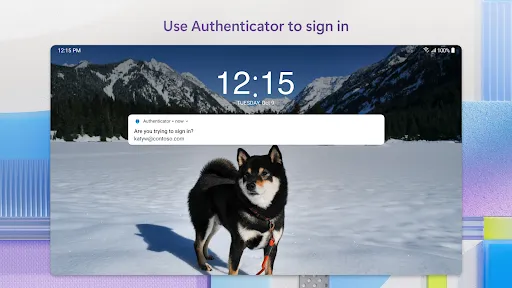
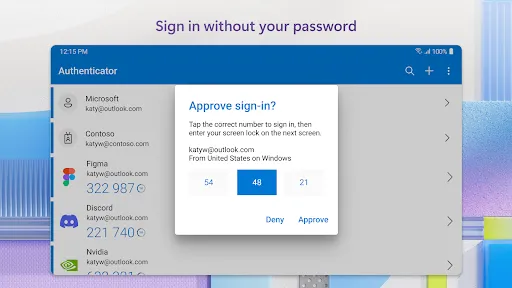
Multi factor authentication (MFA) or two factor authentication (2FA) provides a second layer of security. When logging in with multi-factor authentication, you’ll enter your password, and then you’ll be asked for an additional way to prove it’s really you. Either approve the notification sent to the Microsoft Authenticator, or enter the one-time password (OTP) generated by the app. The one-time passwords (OTP codes) have a 30 second timer counting down. This timer is so you never have to use the same time-based one-time password (TOTP) twice and you don’t have to remember the number. The one-time password (OTP) doesn’t require you to be connected to a network, and it won’t drain your battery. You can add multiple accounts to your app, including non-Microsoft accounts like Facebook, Amazon, Dropbox, Google, LinkedIn, GitHub, and more.

Getting started with passwordless

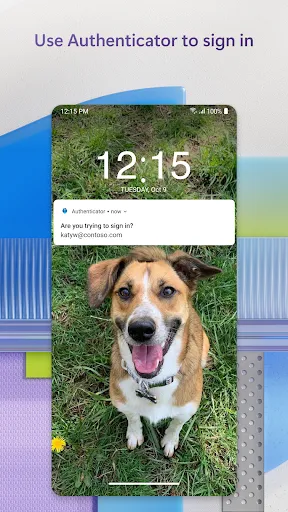
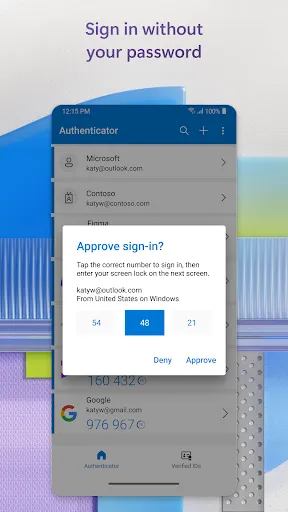
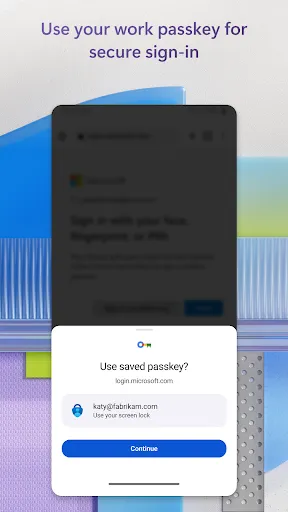
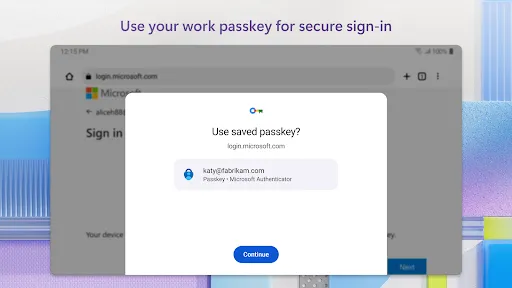
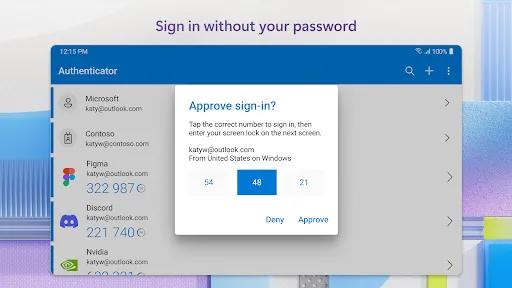
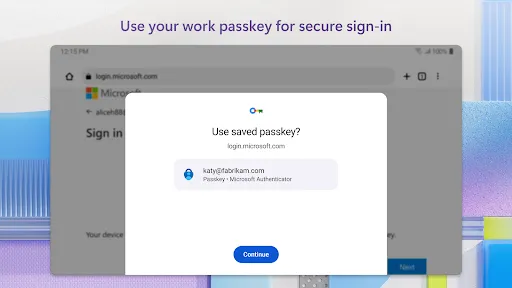
Use your phone, not your password, to log into your Microsoft account. Just enter your username, then approve the notification sent to your phone. Your fingerprint, face ID, or PIN will provide a second layer of security in this two-step verification process. After you’ve signed in with two factor authentication (2FA), you’ll have access to all your Microsoft products and services, such as Outlook, OneDrive, Office, and more.

Microsoft personal, work or school accounts

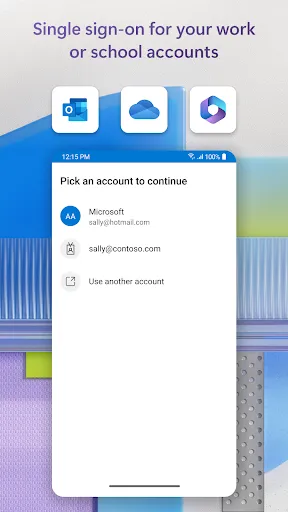
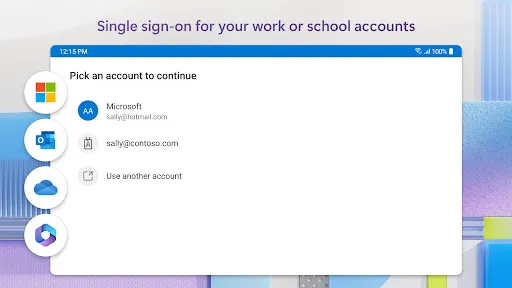
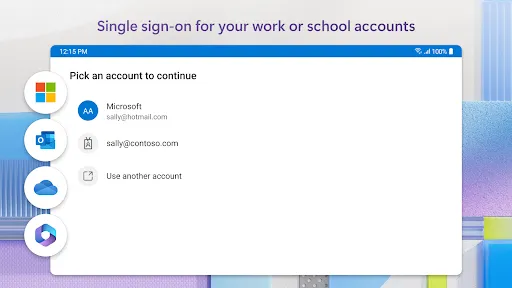
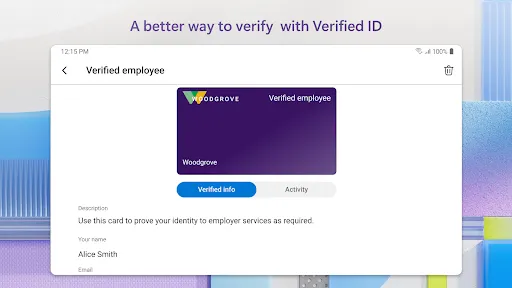
Sometimes your work or school might ask you to install the Microsoft Authenticator when accessing certain files, emails, or apps. You will need to register your device to your organization through the app and add your work or school account. Microsoft Authenticator also supports cert-based authentication by issuing a certificate on your device. This will let your organization know that the sign-in request is coming from a trusted device and help you seamlessly and securely access additional Microsoft apps and services without needing to log into each. Because Microsoft Authenticator supports single sign-on, once you have proven your identity once, you will not need to log in again to other Microsoft apps on your device.

Optional Access Permissions

Microsoft Authenticator includes the following optional access permissions. All these require user consent. If you choose to not grant these optional access permissions, you can still use Microsoft Authenticator for other services that do not require such permission. For more information see https://aka.ms/authappfaq

Location: Sometimes your organization wants to know your location before allowing you to access certain resources. The app will request this permission only if your organization has a policy requiring location.

Camera: Used to scan QR codes when you add a work, school, or non-Microsoft account.

Read the contents of your storage: This permission is only used when you report a technical problem through the app settings. Some information from your storage is collected to diagnose the issue.

Frequently asked questions

If you're an Android user and don't download the app from the official Google Play Store, you may find the installation process more complicated than usual.

But we are delighted to inform you that you don't need to worry. To ensure you could install this app smoothly, we have written and uploaded a detailed tutorial. It would guide you on installing an app after downloading it from our website step by step, with the help of pictures.

You may find this helpful article on the downloading site, or visit How to install APK/XAPK files on Android.

If you need further help, please do not hesitate to contact us via email [email protected].

We fully understand your concern about safety. We agree that one person wouldn't be too careful in the cyber world. Meanwhile, we are happy to tell you that one of our priorities is to provide our users with safe app files that they can use without any worries.

We guarantee that all the app files we provided originate from official and reliable sources. We promise that they do not contain any malware that will harm your hardware or the safety of your privacy.

We are glad to let you know that the vast majority of apps on our website are available for free download. Only a small selection of apps require payment, and their prices are set solely by the respective developers—we simply provide an official and secure download platform.

Rest assured, whether an app is free or paid, every download link on our site is verified and completely safe. You can download with confidence, and no account registration is needed—just click the download button and you're all set!

Recently we received a lot of emails from our users, which said they couldn't log in for different reasons, such as "forgot the user name or password" or "had a new phone." We are willing to help you out. Please read the notes below to see what we can do.

To answer this question, please first let us know which account you're referring to.

If you're referring to your account of some app, like your Facebook account or your Youtube account. Unfortunately, we would not be able to help in this case. We would suggest you turn to the customer service of this application.

If you're referring to your Appurse account, we should apologize for your confusion since there is no Appurse account. We never require registration for our service, and you will not find any procedure related to creating an account or registering on our website.

This question is essentially quite similar to the prior one. It's a pity that we are unable to help you to cancel the subscription to a third-party application directly, while we would suggest you to contact its customer service for further information.

Sorry that we are unable to help you to get a refund from a third-party application directly. If you wish to get a refund from a third-party app, we would suggest you to contact its customer service. We would be happy to provide you the way to contact them.

If you want a refund from us, we should apologize for your confusion. Our service is 100% free, and any payment information is not required.

If you run into any site that asks you to provide your payment information, be careful. Remember never reveal your payment information to any unauthorized third parties, no matter how attempting their offer may seem.

Sorry that we cannot answer this question directly, for this only aims to answer some general questions. You may find how to use a certain app by checking our review page.